Your internet plan can be fast. Your house can still make WiFi feel slow.
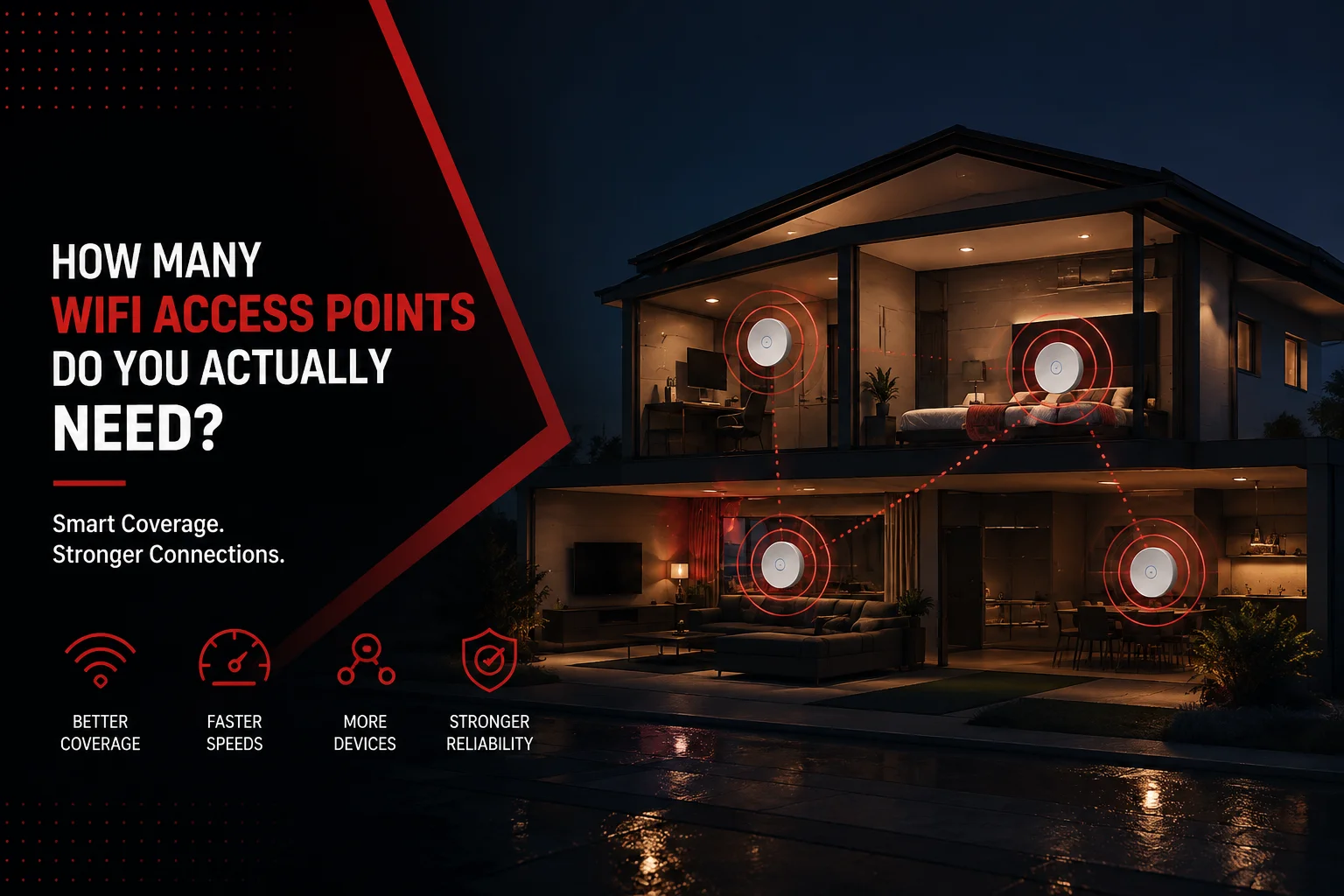
If you are asking how many access points do I need, start with roughly one properly placed access point for every 1,000 square feet as a performance-focused planning point. Then adjust for walls, floors, device load, room layout, outdoor spaces, and how much of your home actually needs strong WiFi.
That last part matters.
A 2,500-square-foot open home may work well with two access points. Another home of the same size may need three or four because the signal has to cross dense walls, multiple floors, an addition, or a long floor plan.
The number on the box is not the real answer. The house decides.
At Home Cinema Center, network design is part of the same technology picture as streaming, home theater, multi-room audio, cameras, and home automation. When any of those systems depend on weak WiFi underneath, expensive technology can start behaving like cheap technology.
Key Takeaways
- Start around one AP per 1,000 sq ft, then adjust. It is a planning point, not a guarantee.
- Walls and floors can matter more than total square footage. Two equal-size homes may need different networks.
- More access points are not always better. Poorly placed APs can compete with each other and make WiFi less predictable.
- Wired backhaul is usually the cleaner long-term setup. It keeps AP-to-network traffic off the wireless link.
How Many Access Points Do I Need? Start With This Simple Range
For a normal residential layout, this table gives you a sensible place to begin.
| Home size | Starting range | What may push the count higher |
| Under 1,500 sq ft | 1–2 APs | Dense walls, separate floors, patio coverage |
| 1,500–3,000 sq ft | 2–3 APs | Long layout, smart-home load, home office |
| 3,000–5,000 sq ft | 3–5 APs | Multiple stories, cameras, outdoor zones |
| 5,000+ sq ft | 4–6+ APs | Wings, detached spaces, large patios, dense construction |
Treat those numbers as planning ranges, not a shopping list.
Ubiquiti’s February 2026 WiFi design guidance says most of its access points can cover approximately 1,000–2,000 square feet, but it recommends at least one AP per 1,000 square feet when the goal is stronger performance and connectivity. The same guidance specifically warns that walls and other obstacles reduce useful coverage.
That is why “my house is 3,000 square feet, so I need exactly three” is the wrong way to think about it.
The useful question is:
What jobs does each access point need to do?
Square Footage Is Only the First Number
Think of WiFi like lighting.
One extremely bright light in the middle of a house would technically produce light in many rooms. That does not mean every room would be comfortably lit.
WiFi behaves in a similar way.
A powerful router or access point may technically reach a distant room, but that connection can become weak, slow, or unstable once the signal passes through enough material.
Walls change the map
Drywall is usually easier for WiFi to cross than concrete, masonry, metal, large appliances, or other dense obstacles.
Cisco’s wireless guidance notes that building materials affect signal penetration and specifically identifies concrete, metal, walls, floors, and other physical obstacles as potential causes of reduced wireless performance.
So two houses with identical floor area can behave completely differently.
Floors create another problem
A multi-story home is not simply a flat floor plan stacked vertically.
Access-point antenna patterns, floor construction, stair openings, ducts, pipes, furniture, and placement can all change how much useful signal reaches the floor above or below.
That is why “one AP per floor” can be a useful first thought, but it should never be treated as a rule.
Long homes create weak ends
A 3,000-square-foot square floor plan may be easier to cover than a narrow 3,000-square-foot home that stretches from a front office to a rear family room and patio.
Distance matters. So do the obstructions between the AP and your device.
Use the 5C Rule Instead of Guessing

When someone asks how many access points do I need, we prefer looking at five things.
1. Coverage
Mark where WiFi must actually work well.
That normally includes:
- Bedrooms
- Living areas
- Home offices
- Kitchens
- Home theater rooms
- Garages when connected devices are installed there
- Patios
- Outdoor entertainment areas
- Detached offices or guest spaces
A room you rarely enter does not need the same network performance as the office where you spend eight hours on video calls.
2. Construction
Look at what the signal must cross.
A straight line on a floor plan means very little if that line travels through tile, masonry, metal, or several walls.
3. Clients
Count the devices that are active at the same time, not just the people in the house.
One person may have a phone, laptop, tablet, smartwatch, TV, streaming box, speaker, camera, and several smart-home devices.
The scale is easy to underestimate. A November 2025 NCTA report said the average U.S. internet household has 17 connected devices. See the NCTA connected-home report
A technology-heavy home can go far beyond that.
4. Critical rooms
Not every room has the same tolerance for weak WiFi.
A hallway sensor may work fine on a modest connection. A home office video call, wireless multi-room audio system, security camera, or 4K stream has very different expectations.
Design around the rooms where failure is most annoying.
5. Cabling
Finally, ask where Ethernet can realistically reach.
A well-positioned wired access point can be worth far more than several wireless extenders placed wherever an outlet happens to be available.
The rule to remember: Count coverage jobs first. Count access points second.
Why Can Full WiFi Bars Still Feel Slow?
Strong signal and good network performance are not the same thing.
You can be standing close to an access point and still experience poor performance because WiFi airtime is shared.
Ubiquiti describes WiFi as a shared half-duplex medium. In simple language, nearby devices take turns using the same radio resources. Interference, slow clients, channel choices, broadcasts, and device load can all affect how efficiently that airtime gets used.
This creates an important distinction.
Coverage problem
Typical signs:
- WiFi gets weaker as you walk away
- Certain rooms lose connection
- The patio has little or no signal
- Upstairs works but downstairs does not
- Devices disconnect in one part of the house
Capacity or interference problem
Typical signs:
- WiFi shows strong signal but feels slow
- Performance falls when the family is streaming
- Video calls struggle at busy times
- Smart devices react slowly
- Several nearby access points do not seem to improve things
Adding another AP can help a coverage problem.
It does not automatically fix a capacity, channel, backhaul, internet-service, or configuration problem.
Does Wi-Fi 7 Mean You Need Fewer Access Points?
Not necessarily.
A new WiFi generation can offer much higher potential throughput and better use of available spectrum, but it does not make walls disappear.
Modern Wi-Fi 6E and Wi-Fi 7 equipment can use the 6 GHz band. That gives compatible devices access to cleaner spectrum, but the tradeoff is coverage.
Ubiquiti’s current design guidance describes 6 GHz coverage as the weakest of the major WiFi bands and says AP density becomes particularly important when strong 6 GHz performance is the goal.
That leads to a slightly counterintuitive truth:
Upgrading to a better access point does not always mean you can install fewer of them.
If your goal shifts from “I just need a signal here” to fast 5 GHz or 6 GHz performance throughout the home, you may actually benefit from shorter distances between devices and access points.
2.4 GHz vs 5 GHz vs 6 GHz: Why the Band Changes Your Plan
2.4 GHz
This band generally travels farther and handles obstacles better than higher-frequency WiFi.
It is useful for lower-bandwidth smart-home devices and distant areas, but it has less available spectrum and often more competition from neighboring networks and other devices.
5 GHz
For many homes, 5 GHz provides the practical balance between speed and usable indoor coverage.
But forcing one 5 GHz access point to serve an entire large home usually creates weak edges.
6 GHz
6 GHz gives newer devices much more spectrum to work with.
It is excellent when devices are reasonably close to an AP. It is much less attractive when your network plan depends on pushing the signal through several rooms and floors.
So when designing a modern network, do not ask only:
“Does WiFi reach this room?”
Ask:
“Does the WiFi band I actually want to use reach this room well?”
That is a much better test.
Where Should WiFi Access Points Be Placed?
Good access point placement usually does more for a home than buying the most expensive model available.
Put the AP near the people using it
Do not make every phone, laptop, TV, and speaker fight through half the house to reach one router.
Keep it away from major obstacles
Placing networking equipment in a metal cabinet, crowded equipment closet, behind large appliances, or at one extreme end of the house can waste much of its potential coverage.
Plan overlap without flooding the house
Multiple APs need enough overlap for devices to move between them, but you do not want every AP shouting over every other AP.
Ubiquiti’s 2026 guidance suggests approximately -70 dBm overlap as a roaming planning point in its ecosystem, while noting that exact spacing varies with the environment and construction.
The principle matters more than memorizing the number:
You want coverage areas to meet, not fight.
Can You Have Too Many WiFi Access Points?
Yes.
This is one of the most common mistakes in premium homes.
The homeowner sees weak WiFi and keeps adding equipment.
One router becomes a router plus a repeater. Then another extender appears upstairs. Then a mesh node gets added near the kitchen. Eventually the house has plenty of radios but no real network plan.
Ubiquiti notes that internal interference from overlapping channels can become a major performance limit in multi-AP networks.
More APs can also cause devices to stay connected to the wrong unit longer than you expect.
Do this, not that
Do this: Give every AP a clear coverage purpose.
Not that: Add an AP simply because another room has an electrical outlet.
The best network is not the one with the most hardware.
It is the one where every piece of hardware has a reason to be there.
Wired Access Points vs Mesh WiFi
Both can work. They solve the backhaul problem differently.
| Setup | How AP/node connects back | Best fit | Main tradeoff |
| Wired access points | Ethernet | Permanent whole-home network | Requires cabling |
| Wireless mesh | WiFi | Homes where new cabling is difficult | Backhaul also depends on wireless conditions |
| Single router | Directly at router | Compact, open spaces | Coverage falls as distance and obstacles grow |
For a permanent high-performance installation, wired access points are usually the first choice when cable routes are practical.
Ubiquiti puts it plainly: “a wired backhaul is always recommended when available.” Read the 2026 UniFi WiFi Design guidance
Wireless mesh still has a place. It can be very useful when finished walls, construction constraints, or rental conditions make Ethernet difficult.
The mistake is treating mesh and wired APs as identical simply because both create multiple WiFi coverage points.
A Five-Step Way to Estimate Your Access Point Count
Before buying hardware, do this.
Step 1: Draw the rooms that actually matter
Mark bedrooms, offices, entertainment rooms, patios, garages, and smart-home areas where reliable WiFi matters.
Do not begin with equipment.
Begin with use.
Step 2: Mark the difficult barriers
Add floors, masonry, concrete, large metal areas, utility spaces, and sections of the home that have already shown weak signal.
Step 3: Use one AP per roughly 1,000 sq ft as the first draft
That aligns with Ubiquiti’s current performance-oriented guidance.
Then forget the number for a moment and look at your floor plan.
Does each AP have a clear job?
Step 4: Decide which APs can be wired
Whenever practical, plan Ethernet backhaul before deciding exactly where the equipment should sit.
The location that is easiest to power is not necessarily the location that gives the best WiFi.
Step 5: Test after placement
Walk through the areas where WiFi actually matters.
Test:
- Signal quality
- Real download and upload performance
- Video calls
- Streaming
- Roaming between rooms
- Smart-home response
- Outdoor coverage
The final count should come from performance, not from a spreadsheet alone.
Quick Self-Check: Do You Actually Need Another AP?
Before adding hardware, look at the symptom.
WiFi is weak only at the far end of the house
Another properly placed AP may solve the problem.
WiFi is strong, but everything is slow
Check internet performance, congestion, channels, and network load before buying another AP.
WiFi drops when you walk between rooms
That can point toward placement, overlap, roaming, or configuration rather than raw internet speed.
Cameras, speakers, or smart-home devices are unstable
Look at the network those devices depend on.
Home Cinema Center’s Home Network Design & Installation service specifically connects network reliability with computers, TVs, streaming equipment, smart speakers, security systems, and other connected technology.
Only one device has a problem
Do not redesign the entire house until you rule out the device itself.
An Illustrative Example: Two 3,000-Square-Foot Homes
Imagine two homes with exactly the same square footage.
The first is mostly open-plan, has conventional interior walls, one main entertainment area, and no major outdoor WiFi requirement.
Two or three carefully positioned APs might cover the important spaces very well.
The second house has three levels, a home office at one end, several dense walls, cameras around the property, multi-room audio, and a patio where the family regularly streams music and video.
That same 3,000 square feet can now represent four or more distinct coverage jobs.
The square footage did not change.
The network problem did.
That is why copying somebody else’s access-point count rarely produces the same result.
What Most People Get Wrong About Home WiFi
Mistake 1: Buying a “stronger” router first
A router cannot change the construction of your house.
If the problem is distance and barriers, moving WiFi closer to the user is often more effective than trying to blast more signal from one corner.
Mistake 2: Hiding the AP because technology should be invisible
A clean installation matters, but hiding wireless equipment in a poor RF location can trade appearance for performance.
Good design should solve both.
Mistake 3: Putting an extender exactly where WiFi is already bad
A wireless repeater needs a good connection upstream before it can pass a useful connection downstream.
Mistake 4: Treating every WiFi problem as an ISP-speed problem
Buying faster internet will not fix a dead zone created inside the house.
Your broadband connection and your home’s WiFi distribution are related, but they are not the same thing.
Mistake 5: Thinking “more APs” automatically means “more speed”
The goal is controlled coverage.
Too much poorly planned radio overlap can create another problem instead of solving the first one.
What About Smart Homes, Sonos, Cameras, and Home Theater?
This is where network design stops being a background detail.
A laptop can sometimes recover from a brief network problem without you noticing.
Entertainment and smart-home systems make weak network design much easier to see.
A stream buffers.
A camera takes too long to load.
Music stops when you move between rooms.
A smart control responds slowly.
The system feels unreliable, even though every individual product may be perfectly good.
Home Cinema Center explains on its home networking page that audio streaming devices, computers, HDTVs, home theater equipment, Apple TV devices, and security cameras all depend on dependable wired or wireless connections.
The same principle applies to multi-room audio systems and other connected home technology.
Sometimes the expensive device everyone blames is not the problem.
The network underneath it is.
What Should Marin and Novato Homeowners Consider?
There is no special “Marin County AP count.”
The building still decides.
But if your Novato or Marin-area property has several floors, an addition, a long layout, a home office, an outdoor entertainment area, a detached space, or a large number of connected AV and smart-home devices, include those areas in the network plan from the beginning.
Do not design WiFi only around where the internet modem enters the house.
Design it around where you live.
Home Cinema Center provides wired and WiFi network design across Marin and surrounding Northern California communities, with its showroom located in Novato.
When Is DIY Enough?
DIY can make perfect sense when:
- The home is relatively compact
- Cable routes are simple
- You only need one or two coverage zones
- Device use is modest
- You are comfortable testing and configuring the network
- A temporary mesh setup already performs well
Professional network design starts making more sense when:
- The home is large or multi-story
- WiFi must work outdoors
- Walls or floors create unpredictable coverage
- Cameras depend on the network
- Multi-room audio depends on the network
- Home automation depends on the network
- You are remodeling or building
- Ethernet can be planned before walls are closed
- You already bought better WiFi equipment and the problem did not go away
That last situation is especially revealing.
When replacing the router does not fix the house, stop shopping by model number and start looking at the network design.
Final Thoughts
So, how many access points do I need?
For an early estimate, start around one access point per 1,000 square feet when strong whole-home performance is the goal.
Then look beyond square footage.
Your walls, floors, room layout, WiFi bands, connected devices, outdoor areas, AP placement, and backhaul can all move the answer up or down.
One correctly placed AP can outperform two badly placed ones. Three well-planned wired APs can feel far better than a house full of random extenders.
The goal is not WiFi everywhere on a floor plan.
The goal is reliable WiFi where your life actually happens.
If your cameras, streaming, Sonos, smart-home controls, TVs, or work setup keep exposing weak spots in the network, Home Cinema Center’s home network specialists can design a wired and WiFi system around the actual layout of your home.

You can also contact Home Cinema Center in Novato for a local consultation or quote.
Frequently Asked Questions
How many WiFi access points do I need for a 2,000-square-foot house?
A 2,000-square-foot home will often start with about two access points when strong whole-home coverage is the goal. An open single-story layout may need fewer, while dense walls, multiple floors, outdoor coverage, or difficult room placement may push the number higher.
Do I need one WiFi access point on every floor?
Not automatically. One AP may cover parts of two floors in some homes, while another property may need more than one AP on a single floor. Floor construction, AP location, room layout, signal requirements, and the frequency band all affect the result.
How many access points do I need for a 3,000-square-foot home?
Three access points are a sensible first planning estimate for a 3,000-square-foot home based on a roughly one-per-1,000-square-foot approach. The final number can be two, three, four, or more depending on layout, construction, connected devices, performance expectations, and outdoor coverage.
Can too many WiFi access points cause problems?
Yes. More access points can create unnecessary radio overlap, interference, and poor roaming when channels, placement, and transmit power are not planned correctly. Add an AP because it solves a defined coverage or capacity problem, not simply because more hardware sounds better.
Where is the best place to put a WiFi access point?
Place an access point close to the area it is meant to serve, with as few major obstructions as practical. Avoid burying it behind metal, large appliances, or dense construction. Placement should also account for neighboring APs so the coverage areas support rather than compete with each other.
Are wired access points better than mesh WiFi?
Wired access points are usually preferable for a permanent performance-focused network when Ethernet is practical because their backhaul does not depend on another wireless hop. Mesh WiFi remains useful where new cabling is difficult or undesirable, especially in smaller or finished homes.
Will Wi-Fi 7 let one access point cover my whole house?
Wi-Fi 7 can improve speed, capacity, and efficiency for compatible devices, but it does not remove the physical limits created by distance and building materials. Strong 6 GHz performance in particular may require access points to be closer to the devices using them.
Should I replace my router or add another access point?
Add an access point when the problem is clearly poor coverage in part of the house. Consider the router, broadband connection, channel conditions, or network configuration when WiFi already shows strong signal but performance remains poor. Testing the symptom first can save you from buying the wrong equipment.
Do smart-home devices increase how many access points I need?
They can. Device count alone does not determine AP count, but cameras, speakers, TVs, computers, automation systems, phones, and other connected products increase network activity. High-use areas may need more capacity or better AP placement even when basic signal coverage already looks acceptable.